
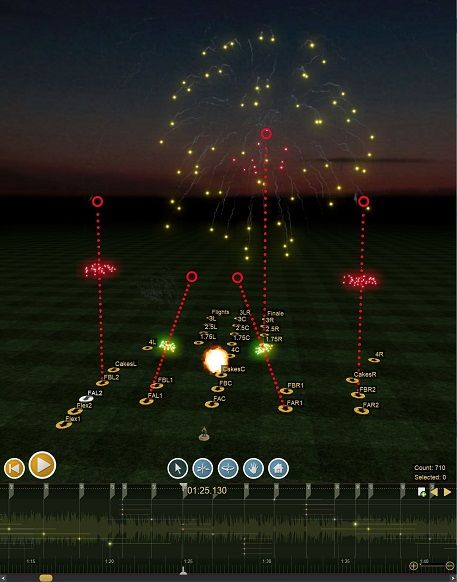
Finale 3D’s real-time simulation and drag-and-drop user interface empower you to design interactively.Simply drag an effect’s trajectory to change its angle or move it from one position to another. Scrub back and forth on the timeline to get a feel for what you’ve designed.
Finale 3D generates simulations for your effects automatically from their descriptions. You can get started with the 6,000 generic effects, or the supplier libraries from Lidu and others, or import your own inventory from a CSV, or type in the names of effects on the fly when you need them. You’ll be up and running in minutes!
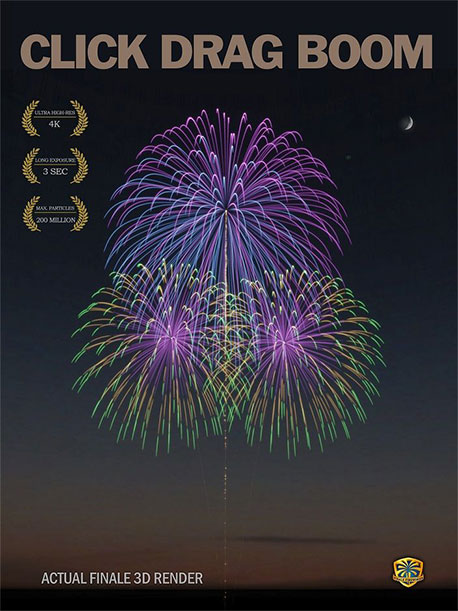
Create stunning Ultra-HD simulation videos for prospective clients in 1080p or 4K. Effortlessly import any Sketchup models of buildings or venues without any file conversion required. Enter the coordinates of the shoot site from Google Maps to project a satellite view on the ground. Set your own render resolution, frame rate, slow-mo options, lighting and rendering parameters, smoke, wind, and randomness options. Generate videos and long-exposure images locally on your own computer, no network connection required.
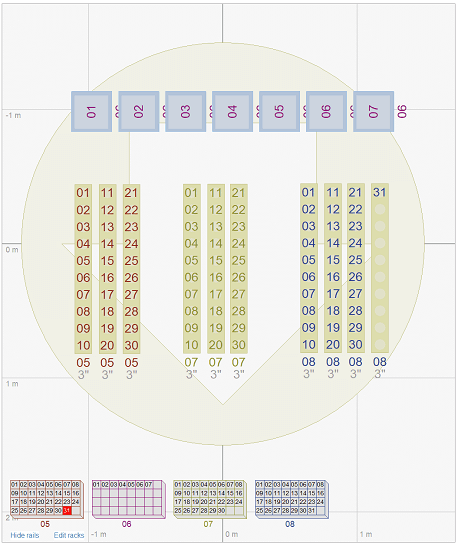
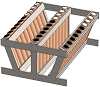
Use Finale’s “Add racks for show” functions or layout the racks yourself by dragging-and-dropping from a palette of predefined or custom racks. Finale supports all kinds of custom racks, including single-shot racks with adjustable rows or posts, slide-in tracks, caliber ranges, fixed or variable angles, integrated firing system wiring, and more.
The rack functions add the optimal number of racks for the show, choosing from racks in your inventory. From there you can re-arrange the racks into groups. The software takes your arrangements into account for firing system addressing, to avoid inefficient or impossible wiring. If you want to fine tune the wiring, you can make adjustments by simply dragging the pin numbers from rack to rack or module to module.
Reports and labels are all fully customizable. Choose from 30 preset designs or layout your own reports with control over every detail — column size, order of columns, font size, spacing, pagination, page size (A4/letter), page orientation, headers, titles, what data is displayed, how the data is grouped, and how certain data like firing system addresses and angles are formatted.
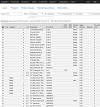
Import inventory from CSV, MDB, or EFX files. Finale 3D creates simulations automatically from the descriptions and specifications like prefire, duration, or height. Finale 3D includes import, export and simple inventory management features for maintaining quantities. The software also has deep integration with Finale Inventory for full scale inventory management, barcoding, and ATF approved reporting.
Everyone has a different process for assigning firing system addresses. Finale 3D supports them all. You can “fill down” in a table-based approach with custom filters and sorts, or you can use Finale 3D’s “blueprint” paradigm with custom addressing rule templates for different sections of the show. Or simply click the “Address show” function and set sort order any way you want.
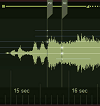
If you prefer to create your own sound track within Finale you can import multiple songs and edit, crop, and fade the songs to build your sound track directly on the timeline. Simply drag the wave forms on the timeline to re-arrange the songs. If you need to re-arrange songs after designing the show, the sections of the show scripted with the songs will move along with them!
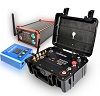
Finale 3D supports every major firing system — about 30 in all — in addition to the new firing systems with DMX output for flame and special effects. The software supports multiple firing systems within the same show design, and can import FIR, SCR, and CSV files to create visualizations for existing shows in a matter of minutes, creating simulations on the fly from the effect names in the show file.
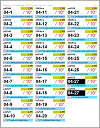
Design your own label templates for stickers of any dimensions or format, including presets for popular Avery labels printed on sheets and Dymo labels printed in rolls. Define the sizes, colors, and formats of whatever fields you want on the labels, and specify every detail, including sorting, page breaks, number of labels per chain, etc. The software supports standard letter size and A4 sheets as well as custom dimensions.

finale_3d March 19, 2024
Brian Panther’s keynote at PTC 2024 compared outdoor pyro to concert tour pyro. He drew a crowd, but maybe we all just wanted to ask him if Taylor Swift is as awesome as we all think.


finale_3d March 13, 2024
WGDrones in Mexico figured out how to add PAN angles to drone motion paths in Finale, to script drones shooting pyro at angles like this example over water.

finale_3d January 15, 2024
“Angle colors” reveal whether SS rack tubes have collisions. Cool = left. Warm = right.

finale_3d December 22, 2023
Google 3D maps work in progress—UI for selecting hi-res focus area inside larger low-res area for 3D scene downloading from Google. Expected release date: January.

finale_3d November 26, 2023
Which SMPTE signal would you use?

finale_3d October 05, 2023
Our booth at APA in Tucson AZ. In the slow times we script par lights to random songs.

finale_3d September 14, 2023
8 standard types of crackle simulations, and a new VDL glossary to tell you what to type.

finale_3d September 06, 2023
REC-TEC GmbH monitoring their real world performance by watching the simulation slaved to the timecode with the timecode input function.

finale_3d August 18, 2023
Can’t demo Pyro in PGI trade show room so we brought an inflatable tent to demo DMX light scripting.

finale_3d August 16, 2023
Annual ritual of serving ice cream at PGI as a thank you to the fireworks community.

finale_3d July 02, 2023
Reading SMPTE timecode in song files and automatically positioning songs aligned to their timecode on timeline. In beta release this week.

finale_3d June 08, 2023
Slaving to SMPTE timecode input. Full SMPTE support coming out this month (June), including timecode input; export channel on soundtrack option; and better handling of imported soundtracks already containing timecode channels.

finale_3d May 16, 2023
We super-sized the DMX tent idea from ISF into a full DMX light room at Cobracon, made like a bouncy hut, so folks at Cobracon could design a light show and see it performed.

finale_3d April 24, 2023
Dmx scripting demo at ISF in Malta.

finale_3d April 19, 2023
Apr 13 release: Site layout diagrams w/ drawing tools and automatic safety circles, legend.

finale_3d January 12, 2023
PyroJam competition: design a show in 3D, enter it in contest, finalist shows get produced live at PyroJam concert, winners get cash prizes. Free to enter, loaner 3D license if you need one.

finale_3d October 17, 2022
New simulation parameter “raggedness” controls the uniformity of the break pattern. Small caliber shells look more realistic with larger “raggedness”.

finale_3d October 17, 2022
What should the default effect height be for comets, mines, and shells of various sizes?

finale_3d August 03, 2022
Finale Ice Cream Social returns to PGI, first time since Covid. Our guest scooper this year was Chris Lutts of Verge Aero. 282 PGI goers served.

finale_3d August 02, 2022
Show made in 60min in PGI DMX Room by Mitchel Lack of Australia.
“Finale 3D enabled us to provide a streamlined experience for our client at Super Bowl LV. We created & provided 3D renderings of the player introductions, the Pepsi Halftime show with The Weeknd, and the post game pyrotechnics. Not only were these renderings used for the creative vision, but also reviewed by the NFL, Raymond James Stadium, all Production companies involved and the Tampa Fire Department. Overall, Finale 3D was a huge part of our success. Thank you!!”

“Finale 3D is by far the most impressive choreography software we have ever used. From the ease of combining work from multiple designers, to custom racks and custom addressing, the software saves us countless hours over other design software. Ultimately, the “3D” portion of the software is the least impressive portion of the overall package. I think this speaks volumes considering how lifelike the 3D simulations are!”
“Finale 3D makes it truly finale! It is incredible creative software with very good support on all levels. We are able to design next level shows with visual testing, and we are able to create next level effects for our shows. We use the graphical position plans of Finale 3D effectively, and we control of our stock levels using Finale Inventory. WE LIKE!”
“We used Finale 3D for the ‘Havana 500’ displays, with the simulations approved by Cuba’s President himself! I can’t say enough about 3D. It’s straightforward to learn, provides simple solutions for complex equipment planning, and produces stunning simulations that a designer can provide to the most prestigious of clients.”

“Truly wonderful. I used to use separate software for visualization, sound, and equipment. I had to explain everything in the field. There were a lot of mistakes. Finale 3D is modern, all-in-one software, which simplifies my work extensively. Prints are logical, clear and understandable. Now we always take the right amount of mortars and modules. There are no mistakes any more.”
“Truly amazing software to take your designs to the next level. Endless customizability, complex sequences, multiple firing systems in the same show, real time simulations and inventory management make designing a treat. Creating the 360° CN Tower show at 1800 feet above the ground would have been impossible without the visualizing power of Finale 3D.”

“Finale rocks — it is an unbelievable tool to get the pictures out of your mind and onto the screen. We designed the first place Pyronale 2018 show in Finale 3D. To keep in budget, we used Finale 3D to simulate firing patterns to choose the best approach to fill the sky. The extensive addressing capabilities made the show setup as easy as could be.”
“The features of Finale 3D are incredible, and they are so easy to use. We save many hours of work with the software’s great and powerful features.”

“No ignition system or software has ever offered such effective methods. For productions with thousands of single-shots, Finale 3D allocates racks according to our specifications, giving us enormous relief and time savings. Previously, we used three systems to perform visualization, scripting and reporting. It all works today with just a single software, Finale 3D.”

“What used to take two hours per minute of show duration to design now takes two hours per song or segment to complete. Even if you only design one show per year and save yourself 20 hours of work, which I promise you will, you are already well ahead. Finale 3D is an absolute must have. It is the single greatest innovation in display design efficiency I have ever seen.”

“It is impossible to say enough about a system that takes care of your entire workflow. I have used Finale 3D to design shows with multiple firing systems stretching across kilometers of land and water. After 20 years of experience in this field, I can tell you for a fact that there is no other product that even justifies a comparison attempt.”

“A once in a generation moment! The realtime sim, addressing blueprints and 4k videos enable us to showcase our ideas in 3D to clients, collaborators, event management and broadcast partners early, which forms the backbone of our final design and provides a link to drive the creative development of an event around our pyrotechnic concepts.”

“We always thought the original Finale was a powerful tool but Finale 3D takes show designing to a whole new level. From the ease of adding effects from available stock to just the versatility of scripting, the software works naturally for us the way we work, rather than requiring us to change procedures to make it work.”

“Finale 3D is the most powerful design software I have ever had the opportunity to use, and its features are all simple and intuitive. It has so many tools, effects and possibilities that I am able to impress clients to the point of raising their budgets, allowing me to increase the complexity of my designs.”
Craig Co racks are a great way to manage your single shots. Inexpensive and durable, they are a great addition to your equipment inventory.

Parente Fireworks Group is an Italian company specializing in large scale pyrotechnic shows. It is one of the most famous and prestigious pyrotechnics manufacturing companies in the world. Parente Fireworks also produces one of the most popular wireless firing systems.
Since 1983, RES Pyro has crafted fireworks, pyrotechnics and special effects displays and products of every size.
Hamex is a Slovenian manufacturer of professional fireworks. The company produces simple comets and mines, as well as Italian style cylindrical shells and sophisticated Japanese style spherical shells with more layers.
Pyroklass was founded in 2000 by Vladimir Rogalev in Moscow, Russia! Since 2002, we have been importing professional and consumer pyrotechnics from China under our own brand.
Pyrogenie Feuerwerk GmbH serves companies in Germany, Austria, Italy and even China with a range of products including over 400 different effects that are permanently in stock.

Ultratec is built on a simple combination of humbled culture, experience, outstanding creativity, and excellent customer service. Through these basic principals we provide the capability of delivering some of the best products in the industry.

Heron Fireworks is a Dutch company founded 25 years ago by Hayo Wolff in Veenendaal. After a very successful 10-year period.

Jiangxi Province Lidu Fireworks corporation Co. Ltd is the largest, the most beautiful and qualification fireworks firms in China.

Hands Fireworks was established in 1873. Hands is currently owned by Lidu International, a pillar in the Chinese fireworks industry.
Lidu Fireworks was founded in 1974. Lidu is one of the worlds largest 1.3g fireworks manufacturers.
With over thirty years of experience in the field of electronics applied to pyrotechnics, they are Italian designer of a professional.
Liuyang Hunan China “Dominator” fireworks has become one of the fastest growing fireworks suppliers in the world.

Since 1987, Spirit of ’76 has delivered America’s best consumer fireworks, helping their customers put on amazing consumer fireworks
Archangel Fireworks Inc. is Canada’s best option for variety, competitive pricing and show support for display companies and professionals.
Showtime FX was born to serve the professional display industry. As we saw professional display sites shrinking and the regulations growing… we knew that there was a better way.

Spark Fabrica’s vision is to “Become the world’s most professional enterprise in the field of stage effects”, and it is committed to researching and producing world-class special effects equipment so as to be international technology and product solution specialist.
We believe that a festival or event is not complete without special effects. It is an essential part of the show. That one mind-blowing moment when everything comes together. A sky full of confetti, the heat of the flames, a powerful blast of CO2 or bubbles floating through the air… magic!

Showven is a Chinese manufacturer of special effects equipment including the Sparkular, Sparkular Cyclone, uFlamer, and Circle Flamer.
At Ricasa, we work with the clear commitment of making great pyrotechnic articles for designers producing shows around the world.
Santore & Sons is a premier manufacturer of professional close-proximity and indoor pyrotechnics. Located in Bunnell, Florida, Santore is a major supplier to the entertainment industry.
PyroSmart is proud to offer a selection of products from Martin Hildeberg of Göteborgs FyrverkeriFabrik.

The Dancing Fireworks Group manufactures nine categories consisting of over 3,000 diversified, safe and environment-friendly products.

EEI products are manufactured with the end use in mind, packaging, fusing all designed to make execution of shows faster along with quality you would expect from the finest factories from China.

Our professional collection is manufactured with the utmost precision to perfectly embody the scriptwriter’s creative idea into the shows.
Jubilee imports products from several established factories in China and has a close relationship with Hamex (Slovenia), who manufacture high quality fireworks influenced by Italian and Japanese techniques.

Bolshoy Prazdnik uses only certified products and modern equipment which meet all safety requirements. We work only with trusted suppliers from Europe and China

In recent years our products have been seen display in Cannes, Paris (Eiffel Tower & Arc de Triomphe), Les Masters de Feu, Geneva, Montreal and many more.
Our state-of-the-art facility prioritizes safety, quality, efficiency and respect for environmental factors which affords us the ability develop safe, reliable and on-time delivery services.

With over 5000 individual combinations in the product catalogue, you are sure to find the effect you need and export can be sent to you in as little as 3 weeks for any stadium/close proximity type event utilising the “Eco-Shot” low debris range.

Chrome Fireworks is a family-owned 1.3G direct importer, wholesaler and public display shooting company located in the heart of Wisconsin, USA.

Don Cuete is a distinguished fireworks seller, focused in professionalizing the pyrotechnics industry across North and Latin America.
Kimbolton Fireworks offers a diverse range of fireworks including aerial shells, roman candles, fountains, and stage effects, each crafted with precision to deliver stunning visual effects and vibrant colors.

Raccoon Fireworks specializes in firework manufacturing, technology, research, production, sales, and professional displays in Liuyang, China.
Wizard Fireworks is among the most popular in such international markets as the United States, United Kingdom, Sweden, Denmark, Germany and Italy. Buyers know Wizard as a one-stop shop for everything related to fireworks.
Our extensive selection includes a diverse selection of 1.4 and 1.3 fireworks, featuring our exclusive house brands, Shockwave, Class B Brand and Night Owl Products.

Beside shows and display, Luso Pirotecnia has been manufacturing and exporting pyro products for years to Asia, America, Europe and Africa. Besides offering TRADITIONAL PORTUGUESE SHELLS and ROMAN CANDLES, the CLOSE PROXIMITY PRODUCT LINE of Mine, Comet and Shell is now available and used in theme park, international sport events and large-scale ceremonies.

Favorite Pyro Group is a young Belarusian company specializing in the supply of pyrotechnic products to Republic of Belarus and the Russian Federation from China.

The PyroProdukt team has excellent contacts with the world’s leading manufacturers of fireworks.

Pyrolamas®, consists on a completely new concept for orienting the single shot tubes for the pyrotechnic industry.
The Fireworks Factory, located in Rockyford, Alberta, was established in 2002 to provide wholesale fireworks to Canadian distributors.

Shogun Vulcan is one of the oldest companies based in Hong Kong that has been exporting fireworks made in China direct to the USA.

NICO Europe GmbH is more than 10 decades old fireworks company and is one of the leading suppliers of pyrotechnics in Germany.

Celtic Fireworks Ltd is a supplier of high-quality fireworks to the trade. Their range includes professional fireworks and retail
fireworks.

The COBRA system can support all types of shows including both manual, scripted, and full pyromusical support.
The Fire Control G2 is the most diverse pyrotechnic control unit on the market, allowing you to control scripts containing both pyrotechnics, relay units and DMX.
Finale 3D has includes a “Pin Board” firing system option allowing pin board fired displays to be designed with ease.
Pyromate, an American company with a new vision for the pyrotechnics entertainment industry
The Pyrodigy firing system is developed by Pyrodigy Production, serving Turkey and abroad for more than 16 years.
The Pyrotronix ptx C4 firing system supports both pyro and triggered DMX presets.
A complete digital firing system developed by ACE Pyro, LLC, a professional fireworks display company
The APEX Firing System is the industry leading firing system for professional use while maintaining low-cost per cue investment.

FireOne is the pioneer in integrated digital firing systems and is recognized worldwide as THE world-class firing system.

精端燃放設備 Jingduan in Liuyang, China makes firing systems for large scale pyromusicals.

Pyrodigital at Innovative Pyrotechnik GmbH are very proud to carry on the legacy of Ken and Bob Nixons’ magnificent.
ActionBase project (ABP) was born in 2004 as a result of close cooperation between professional pyrotechnists and engineers.

Since 1992 galaxis have been developing and manufacturing radio-operated firing systems and so galaxis can offer you unlimited.

ЦЕЛЬ КОМПАНИИ – ДАТЬ ВСЕМ ВОЗМОЖНОСТЬ НАСЛАДИТЬСЯ КАЧЕСТВЕННЫМИ, БЕЗОПАСНЫМИ, ЯРКИМИ ФЕЙЕРВЕРКАМИ.

PyroMaster was created with a view to new solutions and additional functionality in pyrotechnics. Our priority is reliability and the highest level of control during the show. We are there to give you the highest level of control and minimise stress so that you can simply enjoy your work.

Designed and manufactured in the UK by one of the world’s leading firework display companies. Software that is easy and simple to use, hardware that works time and time again (and in UK weather!) Powering companies all around the world with in excess of 100 competition wins.

For over a hundred years since Parente’s first flower in the sky, Parente has led the field of pyrotechnic art and special effects to pursue its mission across the globe: to make unforgettable displays.
With over thirty years of experience in the field of electronics applied to pyrotechnics, PyroDigiT is an Italian designer of a professional firing system that allows you to create any type of pyrotechnic show.
Monetti S.r.l.’s experience in the fields of pyrotechnics for safety and security applications stretches back to 1980. The company has a technical-commercial structure aimed at developing and providing products and services.

Pyromac is a company that has been operating for years in the automation of pyrotechnic shots.
Beginning in 2007 the Mongoose system has been refined and optimized to address limitations in commercial wireless firing systems, and to make the firing process simple, reliable, and more enjoyable to use.
Firelinx is the only product that meets and exceeds the suggestions in the National Fire Protection Agency (NFPA) 1126 Standard for the use of Pyrotechnics.

The minds behind fireTEK firing systems are engineering and fireworks professionals who have come together with one intention.

Founded in 2004, LiuYangShi (Gexin Fireworks Firing Systems Technology Company) is the largest producer of fireworks ignition systems and the first producer of computer-fired ignition systems in China.

For years, the name “Explo Ignition systems” has stood for the manufacture of high quality ignition machines, as well as accessories.

Piroshow is setting new standards of excellence with its professional DMX-and-Pyro capable firing systems.

Wireless Modules are compact and manufactured in extruded aluminium. Each module communicates with the Controller.